Start with the four things most people need: find a rental, start it, monitor it, and stop it. Advanced tools are explained later and can be ignored until you need them.
CheapFleet 0.4.0 · An offline copy is included with your download
Start here
Four steps before your first search
CheapFleet starts safely in simulation mode. Installing it, saving an API key, opening the command center, and running a simulation do not rent a machine.
1 · Install
Keep the download together, open START-HERE.txt, then double-click Install CheapFleet.exe and review the license.
2 · Create a Vast key
Sign in to Vast.ai, open Keys, choose +New, name it CheapFleet, and copy the value when it appears. The key must permit instance search, listing, creation, and deletion for the full rental flow; use only those permissions if Vast offers a custom choice. Vast shows a new key only once.
3 · Save the key locally
From the Windows Start Menu, open CheapFleet - Configure Vast API Key, choose Set or replace, and paste the key into the hidden prompt.
4 · Open CheapFleet
Close and reopen CheapFleet after saving the key. Launch it from the Desktop or Start Menu; its command center opens locally in your browser.
Treat the Vast key like a passwordNever email it to CheapFleet support or paste it into the browser page. The local helper hides the value, and the support bundle excludes it. If it may have been exposed, revoke it in Vast.ai and create another.
Command center
Read the top of the screen first
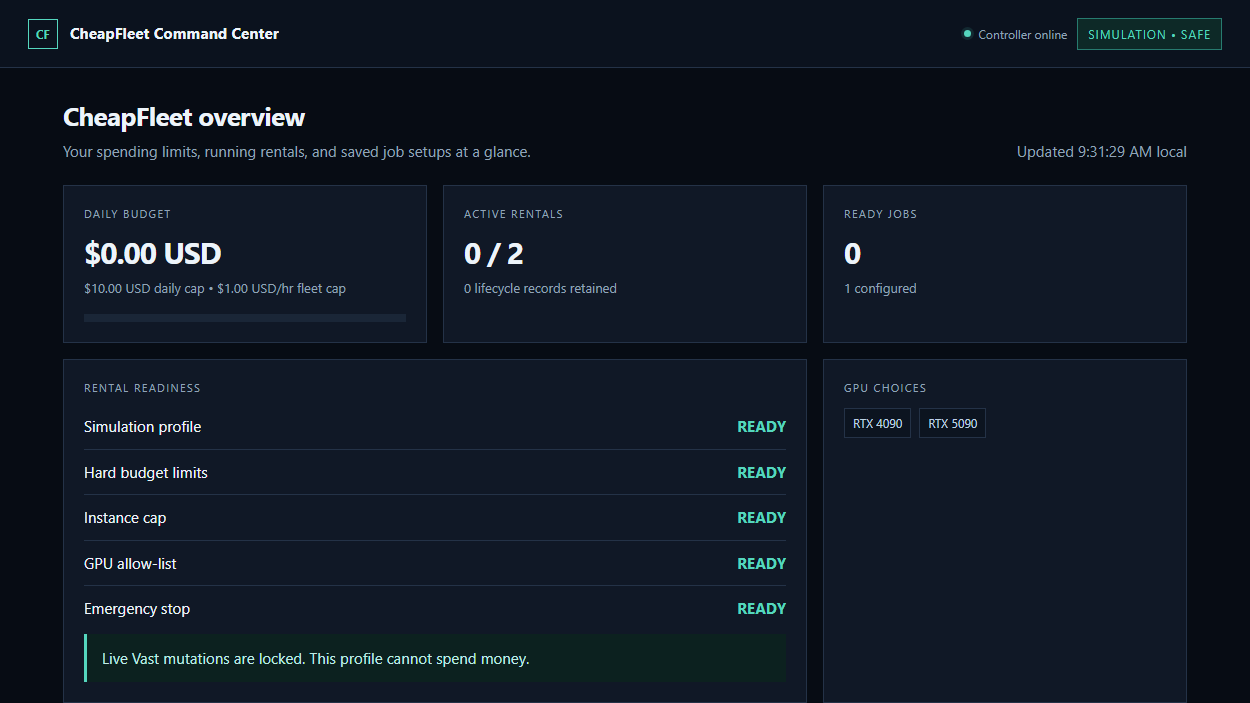
The opening cards answer four questions: What can I spend? Is anything running? Is a job ready? Are live actions still locked?
The real packaged command center using a clean simulation-only profile.
Daily budgetYour configured daily limit and the amount currently reserved.
Active rentalsHow many CheapFleet rentals are currently tracked.
Launch readinessThe checklist that must pass before a live rental can be planned.
Emergency stopWhen active, new live rentals remain blocked.
1 · Find
Save the job, then choose rental limits
CheapFleet needs to know what should run and which rentals it may consider. A lower price never overrides your GPU, reliability, verified-host, fleet, or spending limits.
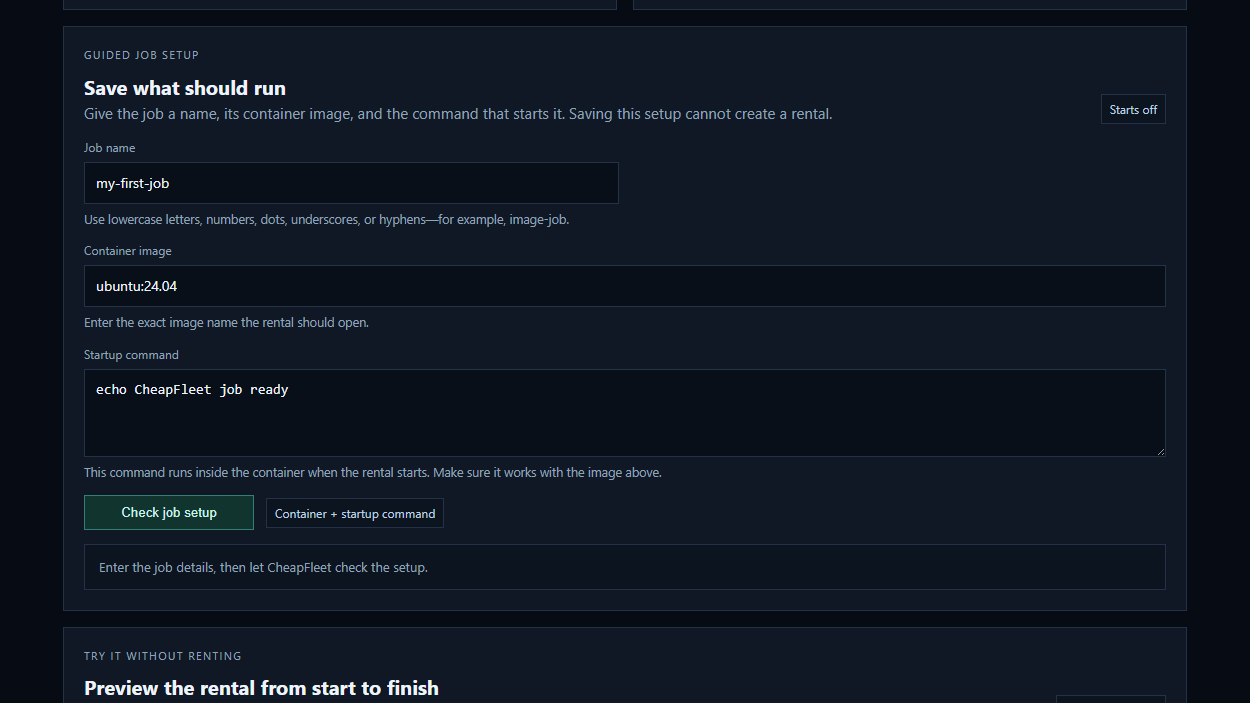
Give the job a name, enter the exact container image and startup command, check the setup, then save it. It starts off.
Job nameUse a short lowercase name you will recognize later, such as image-job or ai-test.
Container imageEnter the exact image name that contains the software and files your job needs.
Startup commandEnter the command that should run inside that image when the rental starts. Test the image and command yourself first.
Rental limitsUnder Spending and host limits, set USD caps, GPU models and counts, minimum reliability, verified-host requirement, and active-rental cap.
Know what is saved whereThe job setup saves the container and command. Hardware, host, and spending limits are global and apply to every job. Saving a job cannot contact Vast or rent anything.
2 · Start
Simulate first, then approve one exact rental
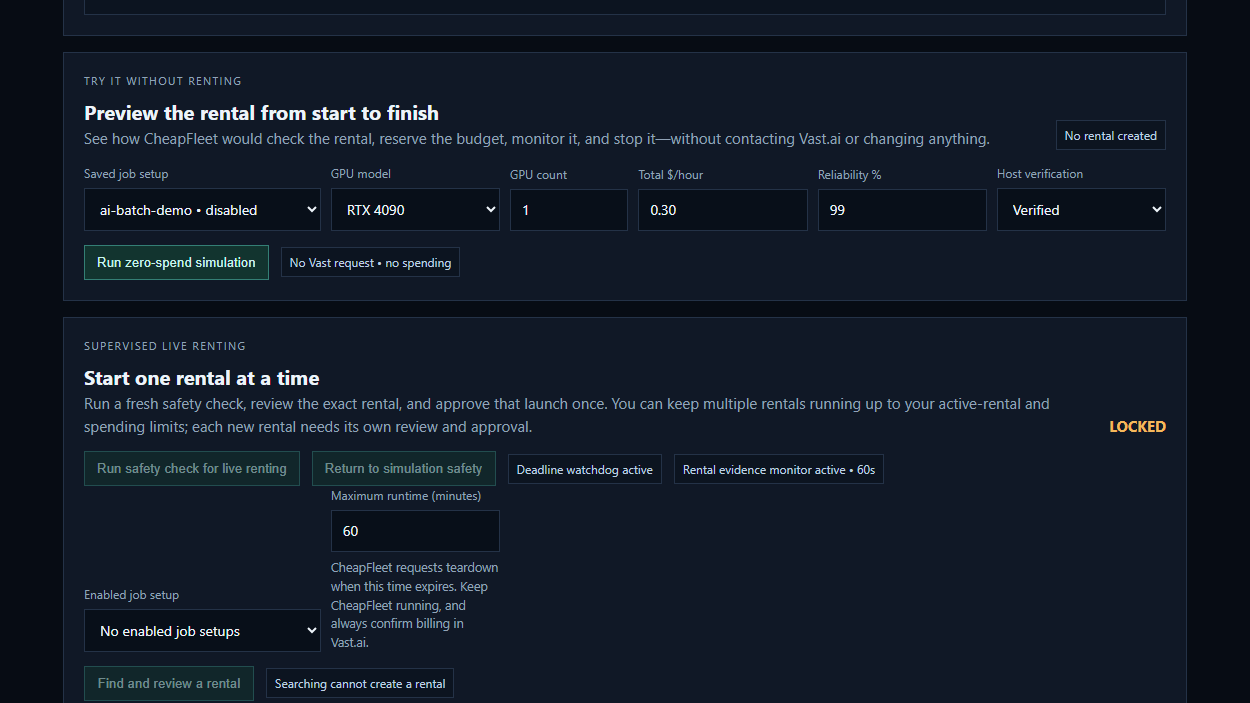
Simulation checks a made-up candidate against your real limits without contacting Vast.ai. It is a practice and policy check—not a market search. A real rental still requires a fresh account safety check and its own confirmation.
Select a saved job, enter a representative offer, and run the preview. After it passes, use Enable beside that saved job.
1 · Simulate
Choose the saved job and enter a realistic GPU, count, total hourly price, reliability, and verified-host status. Select Run zero-spend simulation.
2 · Enable
After the simulation passes, return to Saved job setups and select Enable. Enabling makes the job eligible; it still cannot create a rental.
3 · Find
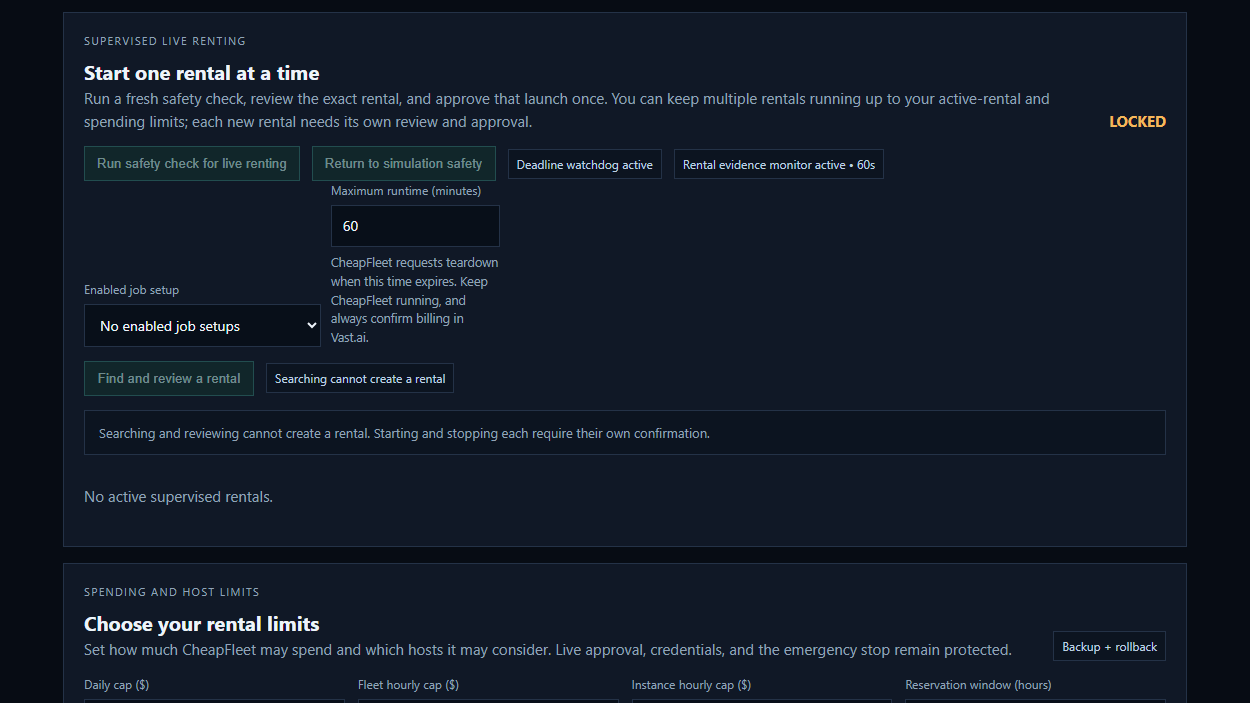
Under Supervised live renting, run the safety check, choose the enabled job and maximum runtime, then select Find and review a rental.
4 · Approve
Read the GPU, hourly price, reserved amount, and runtime. Only if they are acceptable, type the exact one-time phrase shown to create that rental.
The confirmation is the spending boundarySearching and reviewing cannot create a rental. The exact phrase approves only the displayed job, offer, price ceiling, and runtime. If any approved detail changes, CheapFleet refuses the launch.
3 · Monitor
Let the watchdog follow the rental
Keep CheapFleet running during a supervised rental. The watchdog follows the rental deadline, while the monitor checks the provider-reported machine state and supported network reachability.
Supervised renting remains locked until the safety check, account checks, limits, ownership, and local state are ready.
Rental stateShows whether the provider reports the machine as running or stopped.
ReachabilityShows whether the supported public endpoint can be reached.
DeadlineShows the approved maximum runtime and when teardown becomes due.
Optional job evidenceAdvanced workloads can report progress, completion, and checkpoint saves.
Machine running does not mean job completedCheapFleet keeps rental, connection, progress, completion, and save status separate. Missing information is shown as unknown.
4 · Stop
Retire the rental when the job is done
Use Retire now beside the exact active rental and enter its confirmation phrase. CheapFleet releases the budget hold only after the provider confirms teardown.
1
Confirm the job is finished
Check your workload output and any required save or checkpoint outside CheapFleet.
2
Retire the exact rental
Select the active rental and type the instance-specific teardown phrase.
3
Verify provider billing
For any uncertain state, confirm the instance and billing directly in the provider console.
If the computer is offlineThe watchdog cannot request teardown while CheapFleet is not running. Provider billing may continue until CheapFleet restarts or you stop the rental directly.
Complete function map
Every command-center function
The first six items cover normal use. The remaining tools are for testing, diagnosis, recovery, or advanced workload integrations.
NORMAL USE
Saved job setups
Review saved jobs; enable, disable, or delete a setup. Deleting a setup never deletes a remote rental.
NORMAL USE
Guided job setup
Check and save a job name, container image, and startup command with backup and rollback protection.
NORMAL USE
Zero-spend simulation
Test the complete rental lifecycle without network requests or spending.
NORMAL USE
Supervised live renting
Find, review, and approve one new rental at a time. Multiple rentals may remain running up to the active-rental and spending limits; every new launch needs its own approval.
NORMAL USE
Spending and host limits
Set daily, hourly, per-instance, active-instance, GPU, reliability, and verified-host limits. All active instances in the Vast account count toward the cap, including rentals started outside CheapFleet.
NORMAL USE
Rental history
Review recent local CheapFleet activity and important decisions.
OPTIONAL
Simulation fleet controller
Recalculate fleet plans once or continuously. It cannot create live rentals.
DIAGNOSTICS
Lifecycle diagnostics
Checks local records, then optionally refreshes owned rental state and reachability.
ADVANCED
Workload evidence
Validate or attach buyer-supplied progress, completion, heartbeat, and checkpoint declarations.
RECOVERY
Ambiguous launch recovery
Reconcile an uncertain create result before CheapFleet permits another launch.
GUIDANCE
Recommended next action
Points to the safest useful next step based on the current profile and state.
When should I use the continuous planner?
Use it only to test how CheapFleet would plan repeated fleet capacity. Version 0.4.0 keeps this controller in simulation and gives it no live-rental path.
When should I use workload evidence?
Only when your workload already produces a compatible status snapshot and you want CheapFleet to display progress, completion, or save information. Most new users can ignore this panel.
What is ambiguous launch recovery?
If a provider response is interrupted after a launch request, CheapFleet may not know whether a rental was created. It blocks new launches and asks you to reconcile the exact attempt without creating or deleting anything.
Help and recovery
Pause before repeating a live action
The live-rental safety check remains locked
Confirm the Vast key with the Start Menu helper, close and reopen CheapFleet, enable at least one simulated job, stop the advanced simulation planner, and read the exact readiness message. Do not weaken price or host limits merely to clear a warning.
No current rental matches the limits
This is not a failure and creates no rental. Check the allowed GPU spelling, GPU count, hourly cap, reliability floor, verified-host choice, fleet cap, and remaining daily budget. You may wait for the market to change or deliberately revise the limits after reviewing the tradeoff.
A launch result is uncertain or the watchdog reports an error
Do not submit another launch. Open the Vast.ai console and inspect instances and billing first. Leave CheapFleet open, use its exact-launch reconciliation when offered, and retire the rental directly in Vast if immediate cost control is required.
Do send to support
CheapFleet and Windows versions
The exact error text
Steps that reproduce the problem
The generated redacted support bundle after reviewing it
Never send
Rental API keys or passwords
Payment-card information
Raw profiles or databases
Unredacted audit files
Open CheapFleet - Create Support Bundle from the Start Menu. Review the ZIP, then email it to cfsupport@cheapfleet.io.
The simple path
Find. Start. Monitor. Stop.
If you understand those four steps, you understand the core of CheapFleet. Everything else exists to configure, test, explain, or recover that workflow.